Image Search
Search for images just like you know it from internet search engines. No matter where the images are stored or what they are called, you’ll find them with amber. With one click on an image, display more similar images and jump from there to the original data source. You can also ask complex queries in natural language.
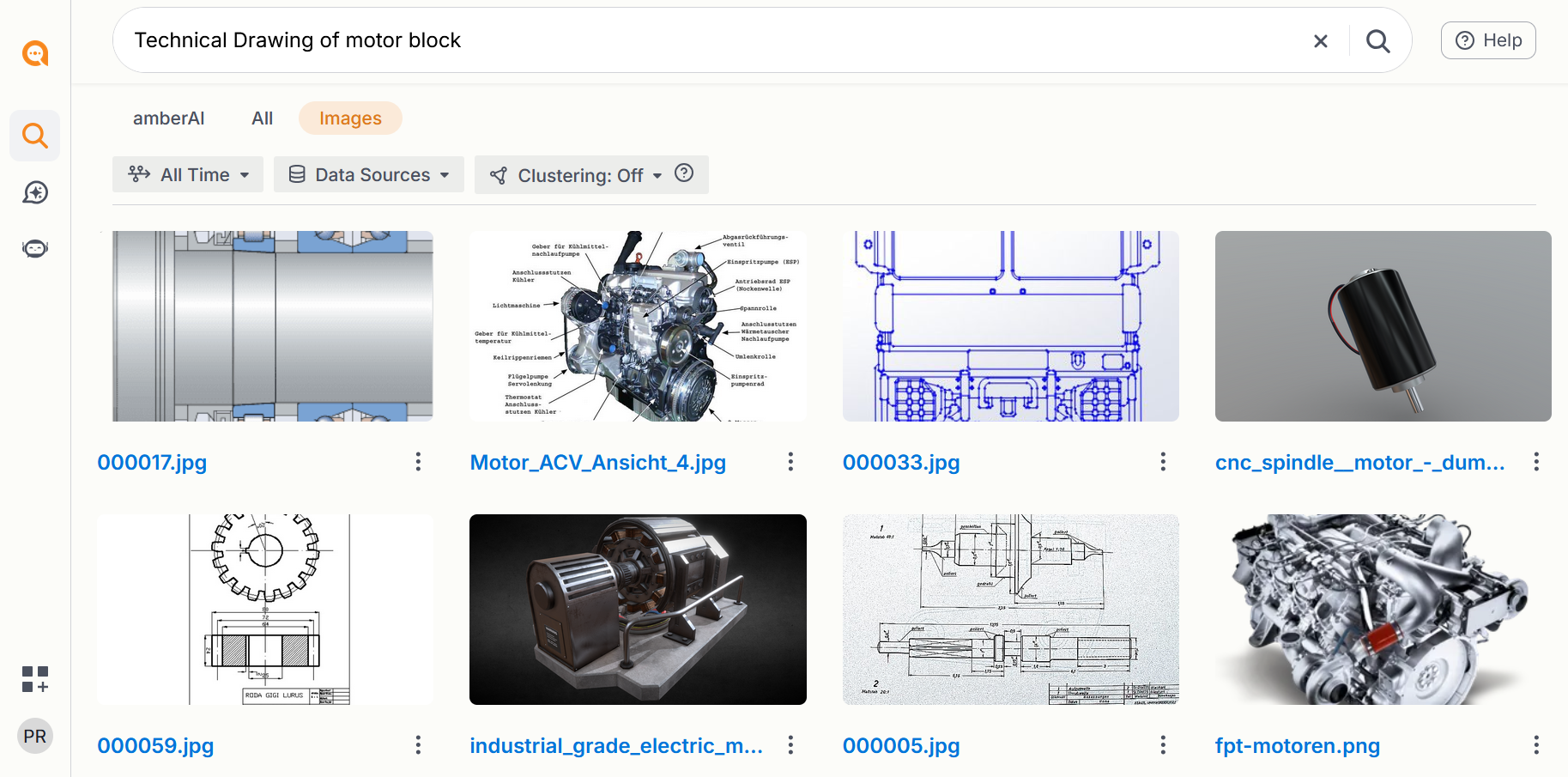
How to search for images
Switch to Image Mode.
Use the tab bar to switch from document view to image search.Formulate your query.
Keywords, e.g., “trade show booth 2024”, “product logo blue”, “CNC setup”.
Complex questions, e.g., “Show me images with yellow warning labels in the production hall”.
Start the search.
Press Enter to run the image search.
Search analyzes the image content and returns relevant results.
View and interact with images
Open large view:
Click any image to open it in large format.More options (right‑click / three dots):
Share: Send the image directly to colleagues.
Open source: Jump to the original file or data source.
View metadata: Check file name, creation date, source, and more.
Continue in chat: Start a conversation about the image (e.g., for analysis or description).
Tips for precise image queries
Combine objects, colors, and context:
“Red emergency stop switch on machine”, “control panel with yellow markings”, “team photo at the trade fair booth”.Use time‑ or source‑based filters:
Narrow down by date, project, folder, or system.
Your advantage
Understands image content: Not just file names—true visual recognition.
Complex queries: Ask questions as you would in a conversation.
Fast interaction: Large view, share, source, and chat—directly from the results list.
Note
Because our AI understands what images show, we can work independently of tags and titles. If tags and titles are available, we are happy to use them—but they are not required.
Was this helpful?