Changelog

Follow new updates and improvements to amber.

😎Release September 2025

🥳New Admin Dashboard Functions

The Admin Dashboard now offers more control and customization:

  • Data Sources: View connection status and indexing details.

  • User Management: Manage licenses, roles, and groups.

  • Insights: Access usage stats and activity breakdowns.

  • Design: Customize colors, logos, and icons to match your brand.

  • AI Settings: Toggle Web Search, add company context, and choose available language models.

For a full introduction of the features, please visit the helppage.

🔖Goodbye Bookmarks - Hello “Add to Agents”

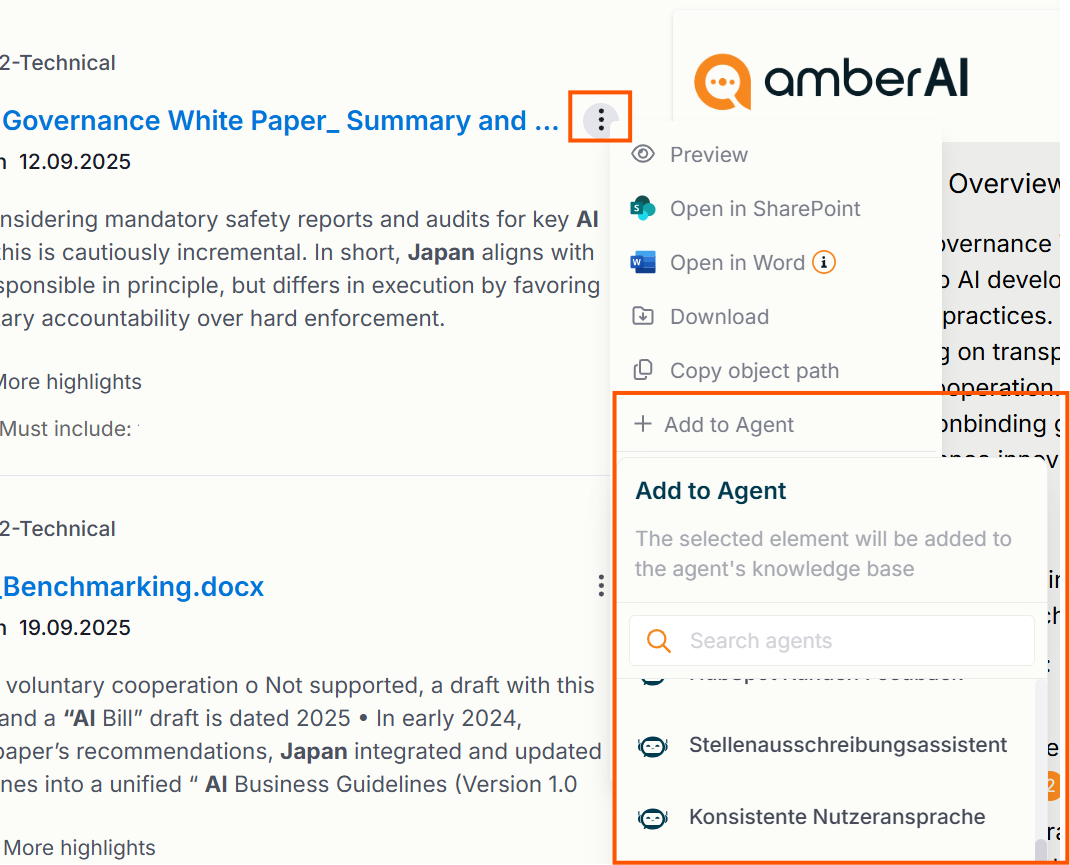
We are replacing the “Add to Bookmark” functionality with something similar, but mighty. You can now directly add search results to one or more agents. Click on the 3-Dot menu and select “Add to Agent” to see all agents you own and select the agent(s) you want to add the file to.

Once done, you will be able to see the files in the agent’s Knowledge Bases and can also delete them again from there.
🤖New Agent Functions

🤝Share Agents with People and Groups

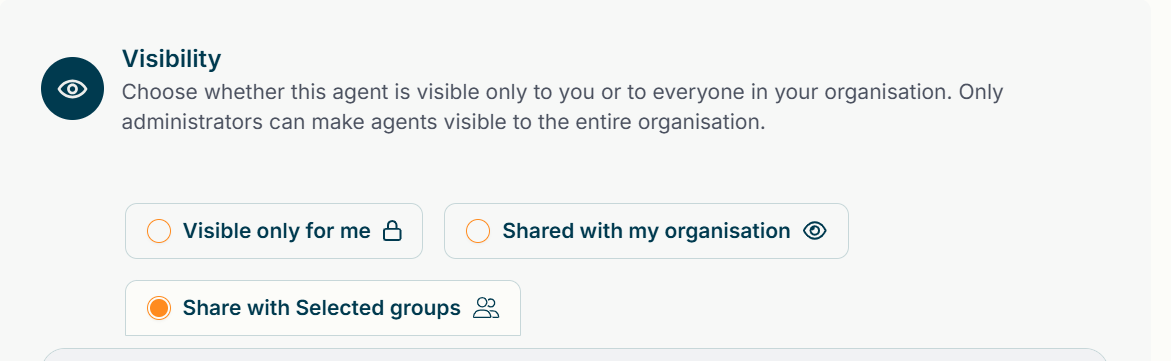
Until now, you could only share agents with everyone. From now on, you can also share an agent with specific people or groups.

To do so, go to the Visibility step in the agent configuration and select “Share with selected groups”.
 A dialog will open where you can choose the people and/or groups.

  • Selected people and groups are marked with a green checkmark.

  • After saving, they will appear at the top of the list so you always have a quick overview of who the agent is shared with.
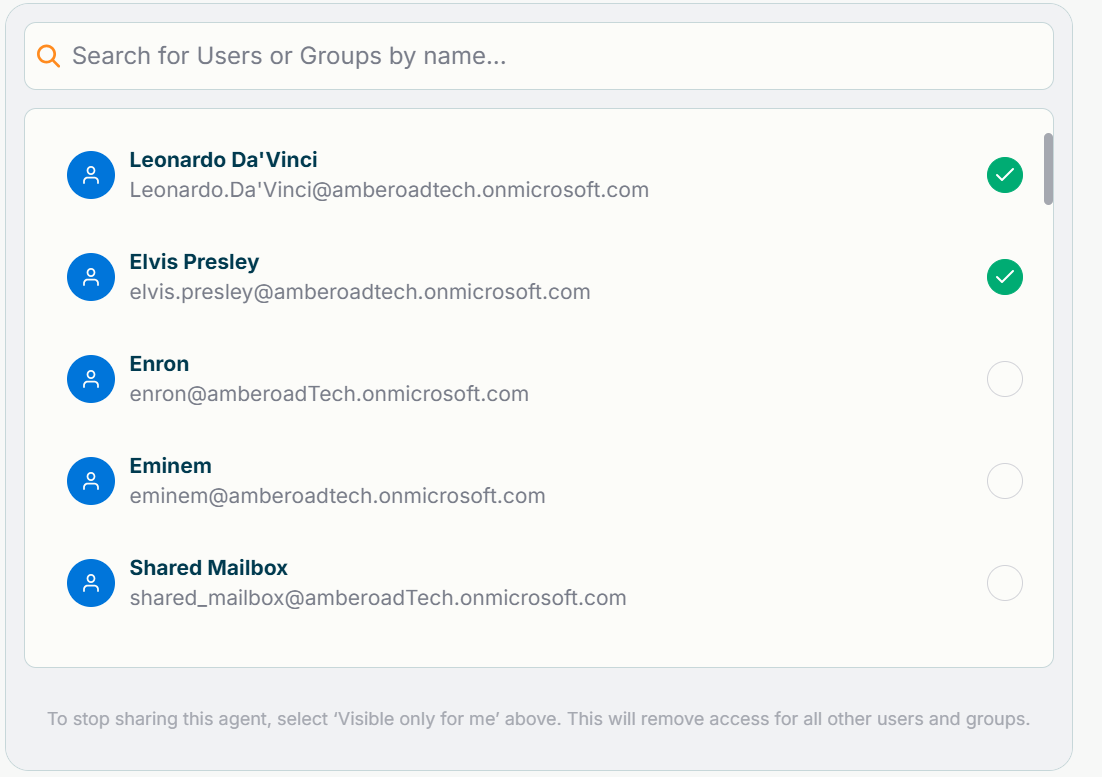
 You can just as easily undo sharing:
Click the person or group again to remove them.

If you want to make the agent private again, choose “Visible only for me”.

👉 Note: Only the creator of an agent can change its visibility settings.

🎭Icons for Agents

From now on, you can assign icons to your agents to make them more personal. Icons also help you find agents more easily.
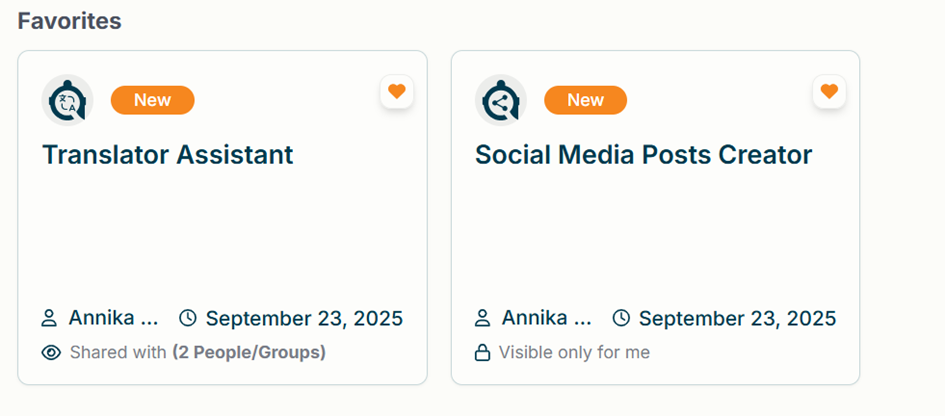
To add an icon, go to the Name field in the agent configuration and click the + next to it. A selection of icons will appear.

Simply choose your favorite icon – it will then be shown next to the name and in the page header.
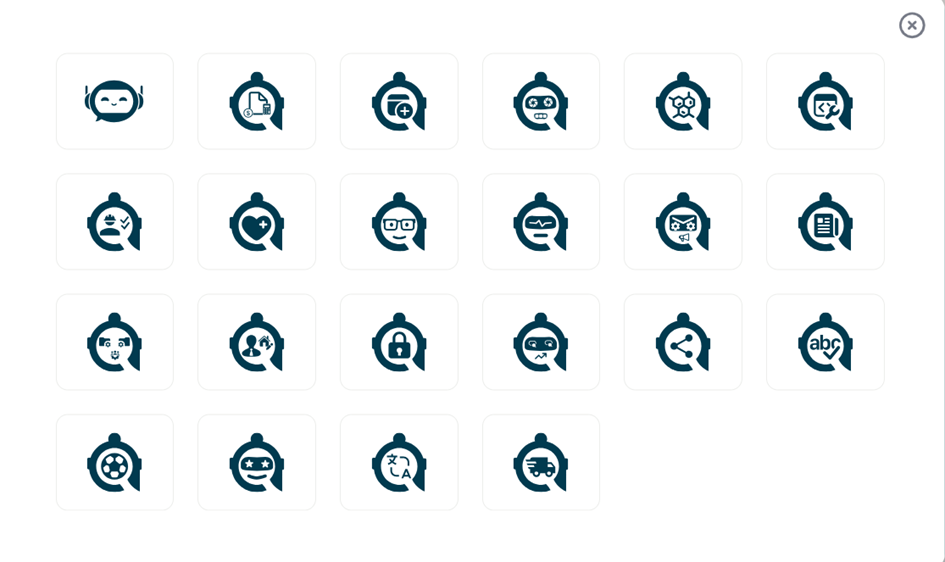
From here on, you are good to go - your new agent icon will be saved when you save the agent configuration and you can also change it anytime you want to.

📜New Chat Functions

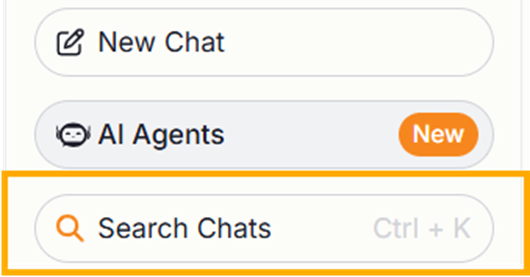
🔍Search Chats

Wondering where that really important conversation ended up? No need for lengthy searching anymore! With the new “Search Chats” feature, you can search through your Agent and AI Dialogue chats and just pick up where you left.
👇Download a Chat

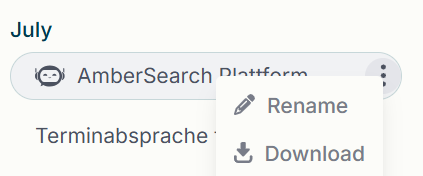
We are also introducing a small but neat function to simply download an entire chat. No more copy & pasting, a simple click is all you need.

To download a chat, navigate to the chat sidebar and click on the 3-Dot menu of the chat you like to download.
NewImproved

😎Release Notes August 2025 - Smarter Agents, Magical Prompts and More Languages

🎨Labels for your agents

Label Overview

You now have even more options to organize your agents using labels.

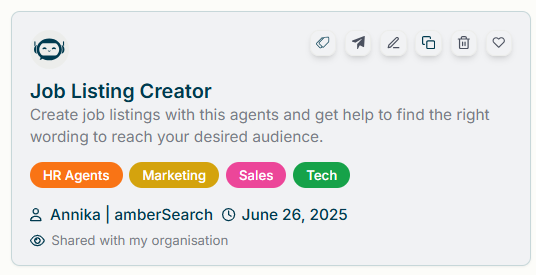
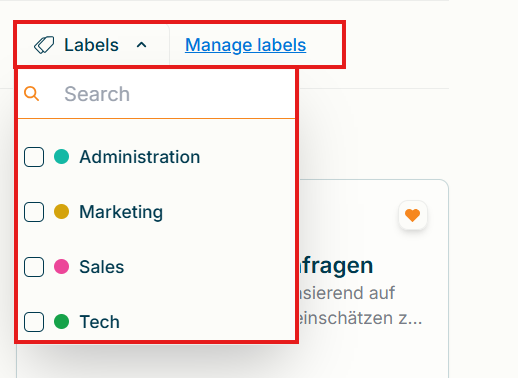
This way, you’ll always keep track, even if you have lots of agents. You can also use labels as an extra filter: simply select the labels you want in the “Labels” filter.

All assigned labels are shown right on the agent card. Here, you can easily add or remove labels – just click the “Label” icon on the card. Any changes You make are visible to everyone, including for shared agents.

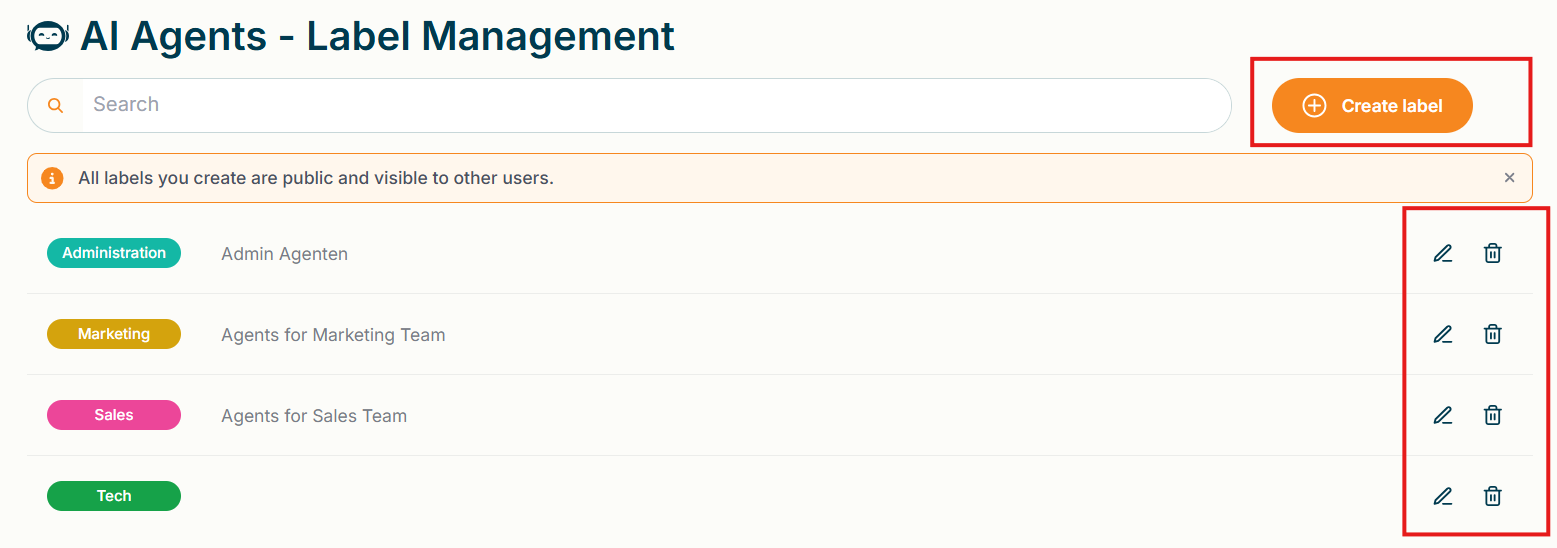
Label Management

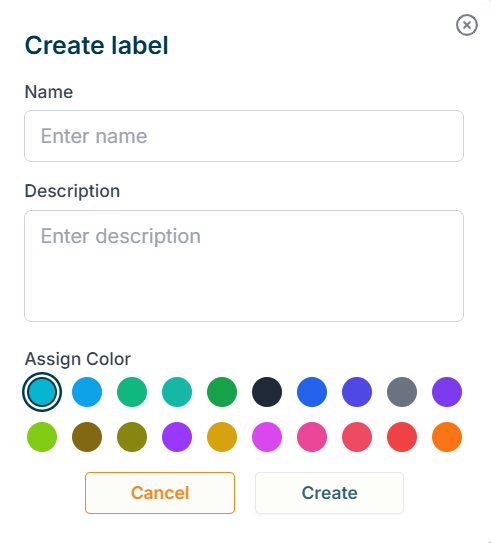
To create a new label or edit or delete existing ones, just visit our new Label Management page under “Manage Labels.” Here, You can also search through all available labels and their descriptions. Creating a new label is super easy – just use the “Create Label” menu.

✨ Prompt Enhancer

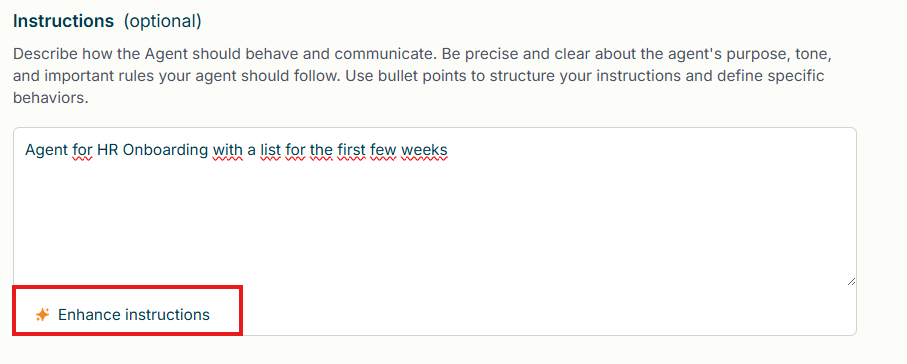
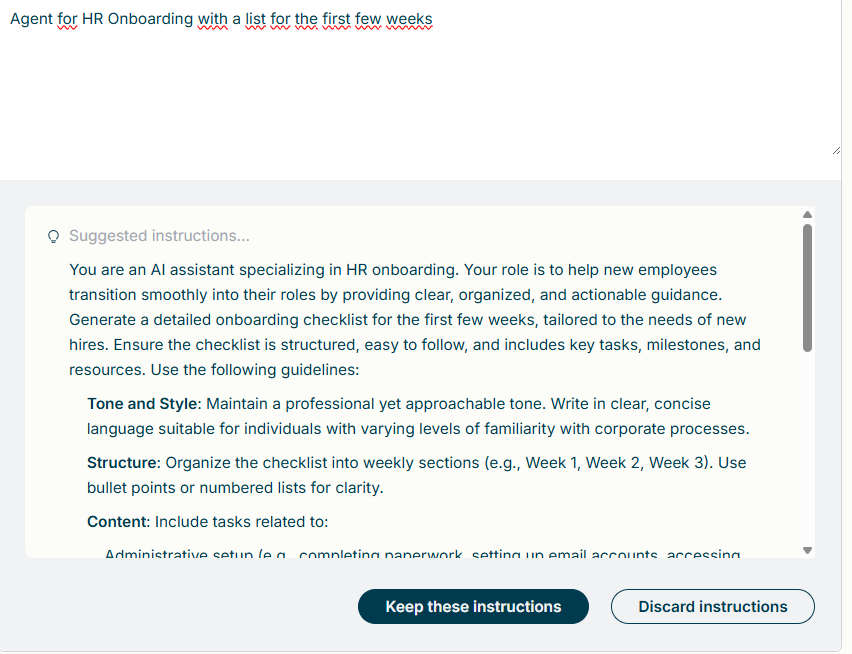
Tired of staring at a blank screen or wrestling with awkward wording? Our automatic prompt enhancer gives your ideas a glow-up - instantly! Just type what you want, and watch as your prompt transforms into its best self. No magic wand required - just a little AI wizardry behind the scenes.

When composing the agent’s instructions, simply click on “Enhance Instructions” to instantly refine and elevate your text. You remain in complete control: choose to accept, discard, or further edit the enhanced instructions at any time.


📄Document Upload in Agents Chat and AI Dialogue

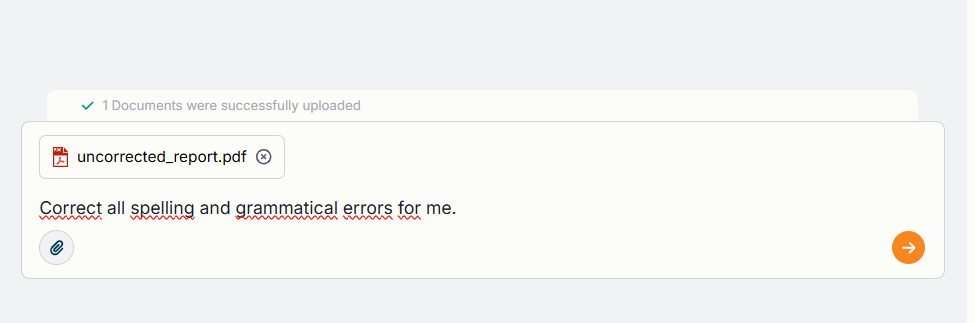
You can now use File Uploads while chatting with an Agent - just like in any AmberAI chat. Either click on the Attach icon to select a file, or simply drag it into the text box.

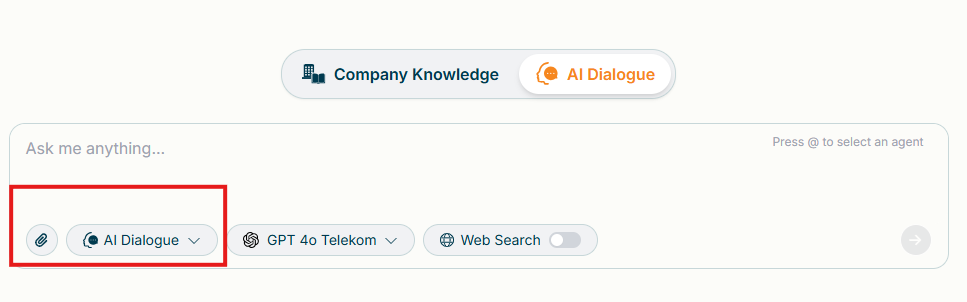
Additionally, you now also have the option to upload files in the AI Dialogue. Previously, this was only possible when in Company Knowledge mode. Now you can easily attach files - either click on the Attach icon or simply drag it into the text box.


📞Agents via Shortcut

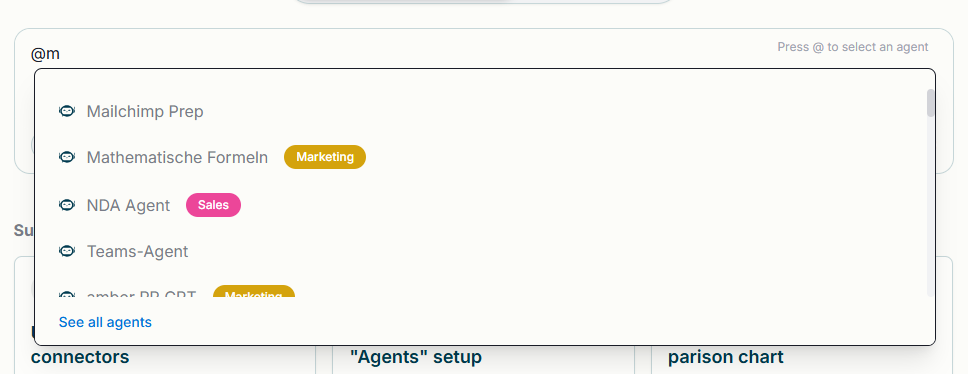
Need to bring an agent into your chat on the fly? Nothing could be easier! Just type @ and pick your agent from the dropdown menu,almost like having agents on speed dial. The only difference? They won’t actually pick up the phone (yet).


🗺️More Languages

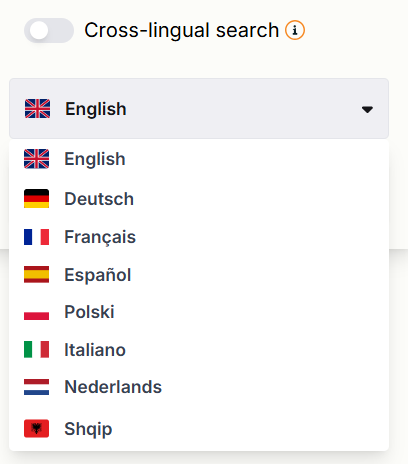
Ambersearch is now available in additional languages. Just go to "Settings" and expand the language menu. In addition to German and English, you can now also choose French, Italian, Spanish, Dutch, Polish, and Albanian.


🧠LLM Selector - Your Choice Made Easy

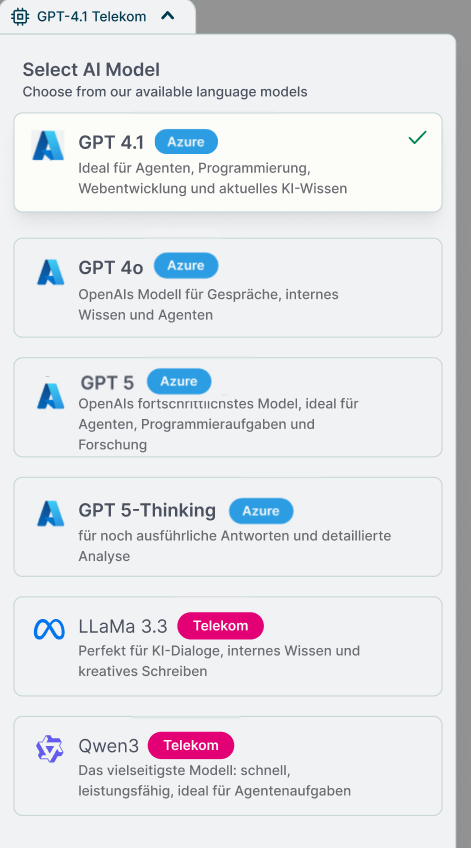
Our LLM Selector got an upgrade! You can now see more easily than ever which model is the right fit for you. Short descriptions will guide you to selecting the best model. To activate a specific model, please contact Customer Success.

NewImproved